GuideRecording
Takes
Add another recording to the end of a project: a new take you record now, or one that’s already in your library.
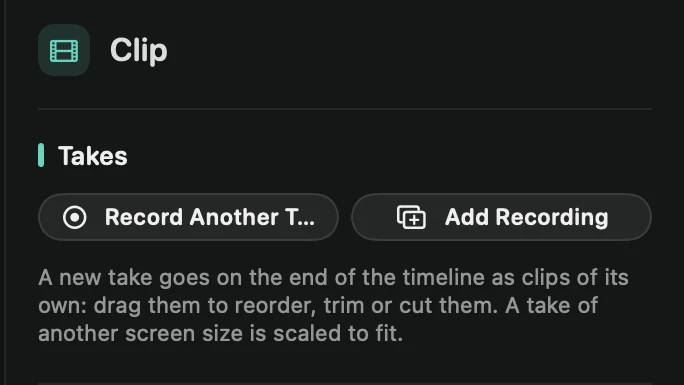
Record another take
Record a video in parts, or redo a section without starting over.
- In the editor, press esc so nothing is selected, and open the Clip tab.
- Under Takes, click Record Another Take. You can also choose Record Another Take… from the Add menu above the timeline.
- Framecast saves the project and opens the recording bar. Record as usual, then stop.
The editor opens again on the new take, with a message like “Added a 12 s take at the end. Drag its clips to move it.”
Add a recording you already have
Click Add Recording, next to Record Another Take, and pick a project from your library. Its recording is added to the end of this one. The other project stays in your library, unchanged.
Working with takes
Each take lands at the end of the timeline as clips of its own. Drag them to reorder them, and trim or cut them like any clip. A take recorded at another screen size is scaled to fit.
Once a project has more than one take, the Takes section lists them as Take 1, Take 2 and so on, with the date and length of each. Click one to jump to it. See Edit on the timeline.