GuideZooms
Instant zoom
Cut straight into a zoom instead of gliding in, for a snappier look. Make one zoom instant, or every zoom; zooming back out still animates.
What it does
Normally the camera glides in when a zoom starts. An instant zoom cuts straight to the zoomed-in view on its first frame, like a cut between two cameras. Zooming back out at the end still animates. Two instant zooms in a row cut straight from one view to the next.
Make a zoom instant
- Click the zoom on the Zoom lane of the timeline.
- In the Zoom tab, under Selected zoom, switch on Instant.
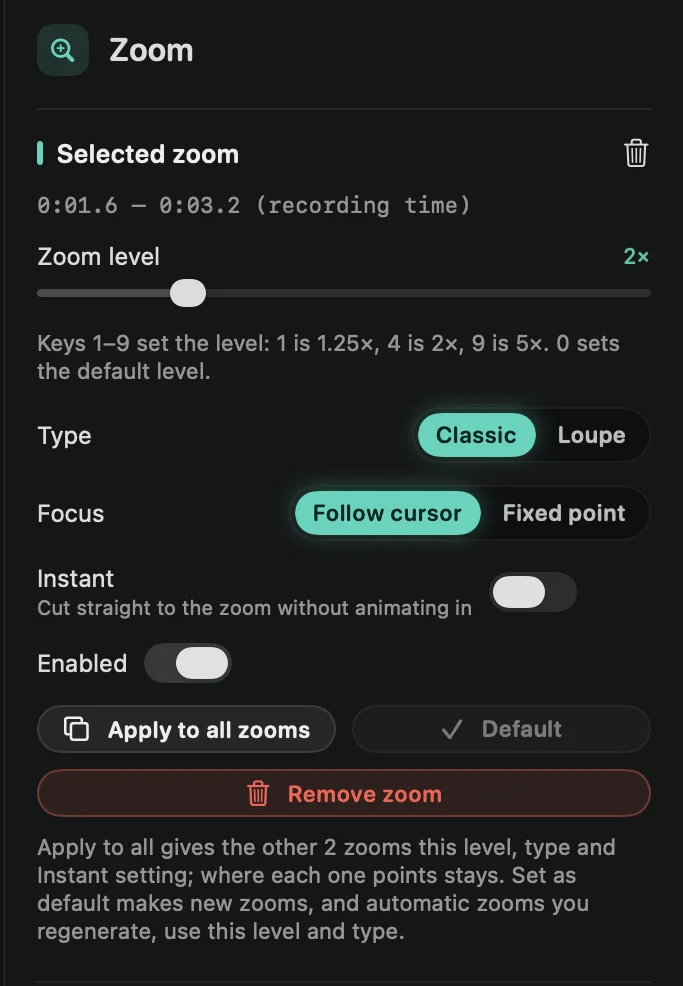
You can also right-click the zoom and choose Instant zoom. To go back, switch Instant off or choose Animate in. Instant zooms show a small bolt on the timeline.
Make every zoom instant
Make one zoom instant, then click Apply to all zooms. The other zooms get its zoom level, type and Instant setting. Where each one points stays the same.
To make only some of them instant, select the instant zoom and press ⌘C, then select another zoom and press ⌘V. Unlike Apply to all zooms, this also copies where the zoom points.
If you’d rather keep the glide but make it quicker, set Animation speed to Fast. See Zoom defaults.
Loupes: Instant works on Classic zooms, not on loupes.