GuideCamera & device
Device frame
iPhone and iPad recordings sit inside a drawn device frame. Pick its color, or turn it off.
Show or hide the frame
When you record an iPhone or iPad, Framecast draws the device around the recording, so it looks like the real thing. The frame is on for every device recording. Its settings are on the Device tab, which only appears for iPhone and iPad recordings.
- Open the Device tab in the inspector on the right.
- Switch Show device frame on or off. The device you recorded is named under the switch.
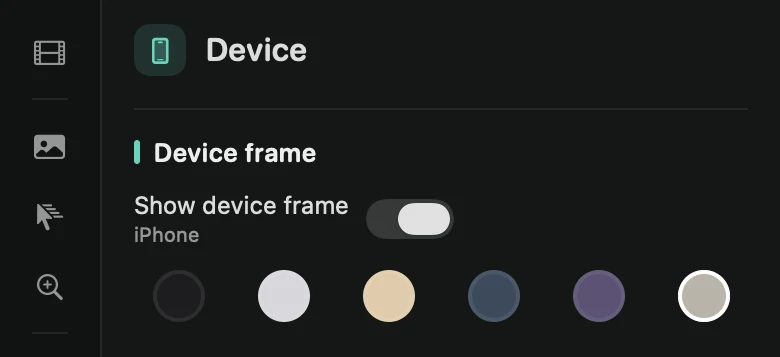
Pick a color
Click one of the six dots: Black, Silver, Gold, Blue, Purple or Natural. Hover a dot to see its name. New device recordings start in Black.
Other settings for device recordings
iPhone and iPad recordings also start with the cursor hidden and without automatic zooms. You can still add zooms yourself, and the background and shadow work as for any recording.
To record your iPhone or iPad, see Record your iPhone or iPad. To place zooms, see Add and edit zooms.