GuideCaptions & transcript
Edit with the transcript
Cut your video by deleting words. Select them in the transcript, cut them, and the video follows. Anything you cut can go back in.
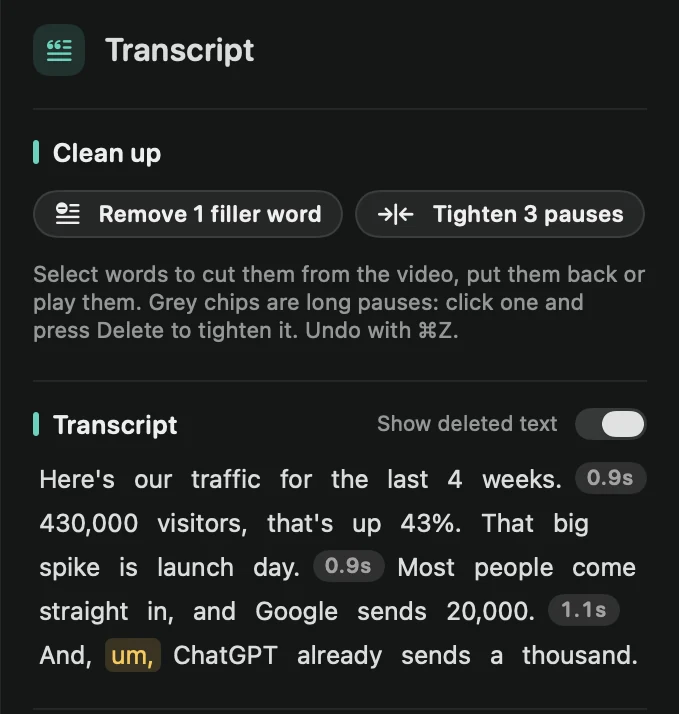
Cut words from the video
The Transcript tab lists every word you said. Cut a word and that moment of the video goes with it.
- Open the Transcript tab in the inspector on the right.
- Click a word to select it. The playhead jumps there. ⇧-click another word to select everything in between, or ⌘-click to add or remove one word.
- Press Cut video in the bar above the text, or press ⌫.
A message shows how much shorter the video got, for example “Removed 1.2 s — ⌘Z to undo”. Press Play in the same bar to hear your selection first. Right-clicking a word gives you the same commands.
Put words back
While Show deleted text is on (the switch next to the Transcript heading), cut words stay in the text, struck through. Select them and press Restore. Play on cut words lets you hear what you took out. ⌘Z undoes any cut.
Every cut also shows as a small scissors mark on the timeline, where you can restore it too. See Edit on the timeline.
Shorten long pauses
Grey chips such as 1.2s mark pauses of 0.8 seconds or more. Click one and a bar offers three buttons:
- Tighten shortens it to a natural breath. Pressing ⌫ does the same.
- Remove cuts the pause out.
- Play plays across it.
To tighten every pause or remove all the “um”s at once, see Filler words and retakes.
No words? The tab needs a recording with microphone audio. If it hasn’t been transcribed yet, press Transcribe in the Transcription section.