GuideEditing
Speed up typing
Play every stretch of typing faster in one click, so viewers don’t sit through every keystroke.
Speed up all the typing
- Open the Keyboard tab in the inspector on the right.
- Under Typing, set Typing speed, from 1.5× to 8×. It starts at 3×.
- Click Speed up typing. The button shows how many sections Framecast found.
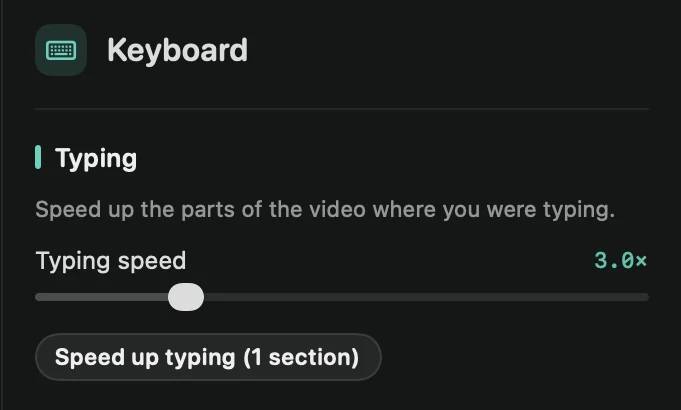
Each stretch of typing becomes a clip of its own at that speed. You can see them on the timeline and change any one later. See Change the speed. Press ⌘Z to undo.
It’s also in + Add › Speed Up Typing above the timeline, and in the command menu.
What counts as typing
A stretch of at least six key presses over a second and a half or more, with no pause longer than about a second. Shortcuts with ⌘ or ⌃ don’t count. Parts you already set to another speed are left alone.
It needs your keystrokes
Framecast records key presses only when it has the Accessibility permission while you record. If no keys were captured, the button is grayed out. See Permissions.
Tip: to show viewers the speed, press Esc, open the Clip tab and tick ⏩ badge.