GuideRecording
Record a display
Record everything on one screen. Framecast’s own windows, like the recording controls and your notes, stay out of the video.
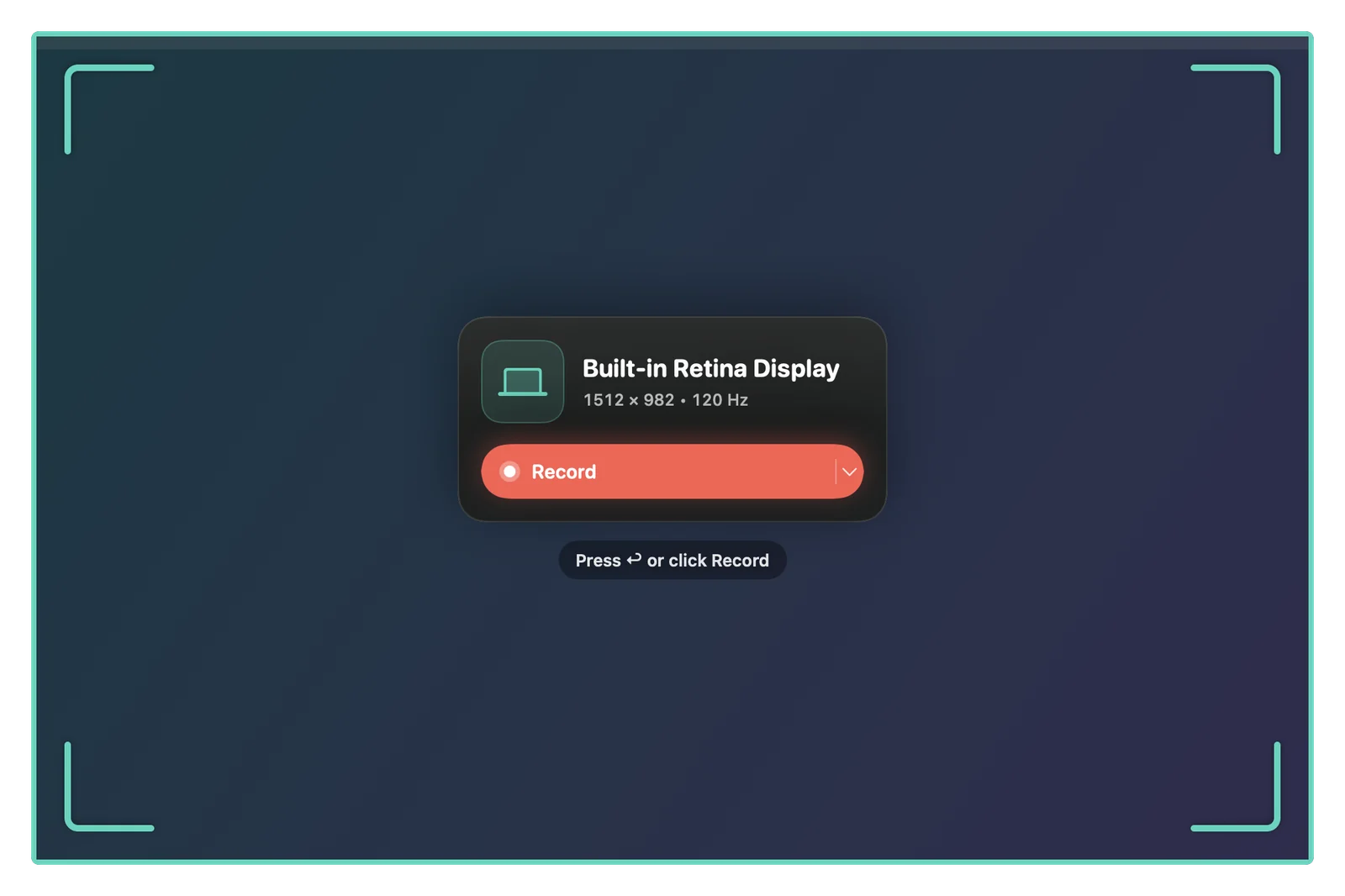
Pick a display
- On the recording bar, click Display or press 1. From any app, ⌃⌥⌘3 opens the bar with Display already chosen.
- With one display, it’s picked for you. With more than one, click the display you want.
- Press ↩ or click Record.
Each display shows a card with its name, size and refresh rate, such as “1512 × 982 • 120 Hz”. With two or more, the main one is labeled Main display. If you press ↩ without picking, Framecast records the display your pointer is on. You can also right-click Display on the bar and choose from the list.
What ends up in the video
Everything on that display except Framecast itself. The recording bar, the recording controls, your speaker notes and your camera bubble never appear in the video.
Two options in the gear menu on the bar tidy the screen for you. Hide desktop icons leaves the files and folders on your desktop out of the recording. Hide notifications keeps notification banners out, and it’s on from the start. See Recording options.
Tip: a big display doesn’t mean tiny text in the video. Framecast zooms in where you click and type, so the details still fill the frame. See Automatic zoom.