GuideRecording
Record a window
Record one app window. Windows that pass in front of it stay out of the video, and Framecast can resize the window to an exact size first.
Pick a window
- On the recording bar, click Window or press 2. From any app, ⌃⌥⌘4 opens the bar in Window mode.
- Point at the window you want; it’s highlighted. Click to pick it, or click again to let it go.
- Press ↩ or click Record.
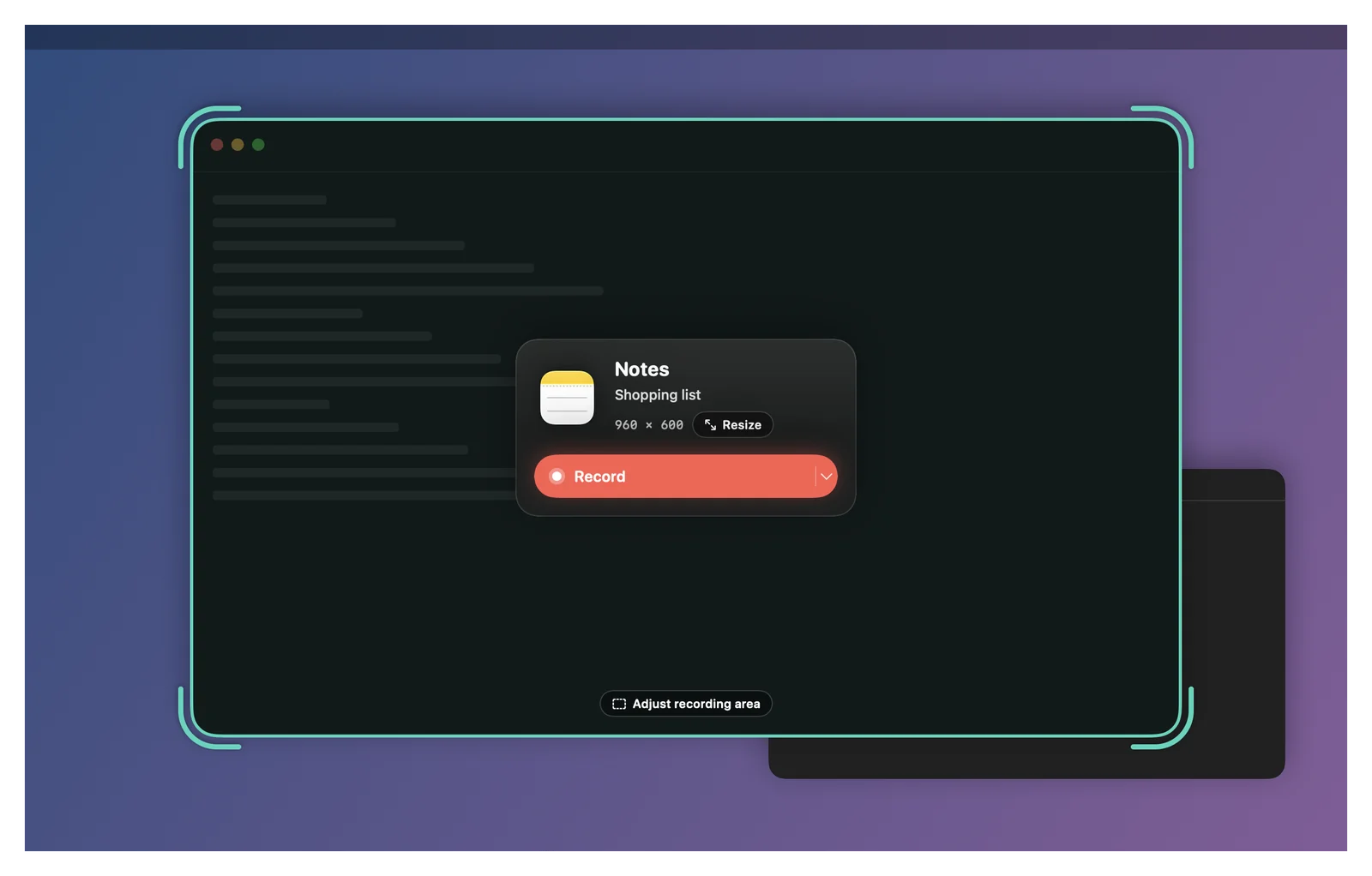
The card shows the app, the window’s title and its size. Only that window is recorded, so windows that pass in front of it stay out of the video. While you record, the rest of the screen is dimmed, only on your screen. You can also right-click Window on the bar to choose from a list of apps and their windows.
Resize the window first
Click Resize on the card to give the window an exact size, like 1920 × 1080. Sizes come in groups: 16:9, 4:3, 9:16, 16:10 and Square. Saved sizes keeps the ones you use often, and Custom… lets you type a width and height. Sizes bigger than the display are greyed out. Resizing needs the Accessibility permission. See Permissions.
More choices
- Adjust recording area, near the bottom of the window, switches to Area mode starting from the window’s outline, so you can record part of it. See Record an area.
- Ignore this window appears when a window covers almost the whole screen. It sets the window aside so you can reach the ones behind it.
- Right-click for Select window, Bring to front, Ignore this window and Reset ignored windows.
- Point at the empty desktop and you get Record entire display instead.