GuideExport & share
Step-by-step guide
Framecast writes a how-to from your recording, with a step and a screenshot for every click and bit of typing. Export it as a web page, Markdown or PDF.
Open it
In the Export window, click Step-by-step guide… next to Also. You can also click it on the Publish tab, or press ⌘K and choose Export step-by-step guide….
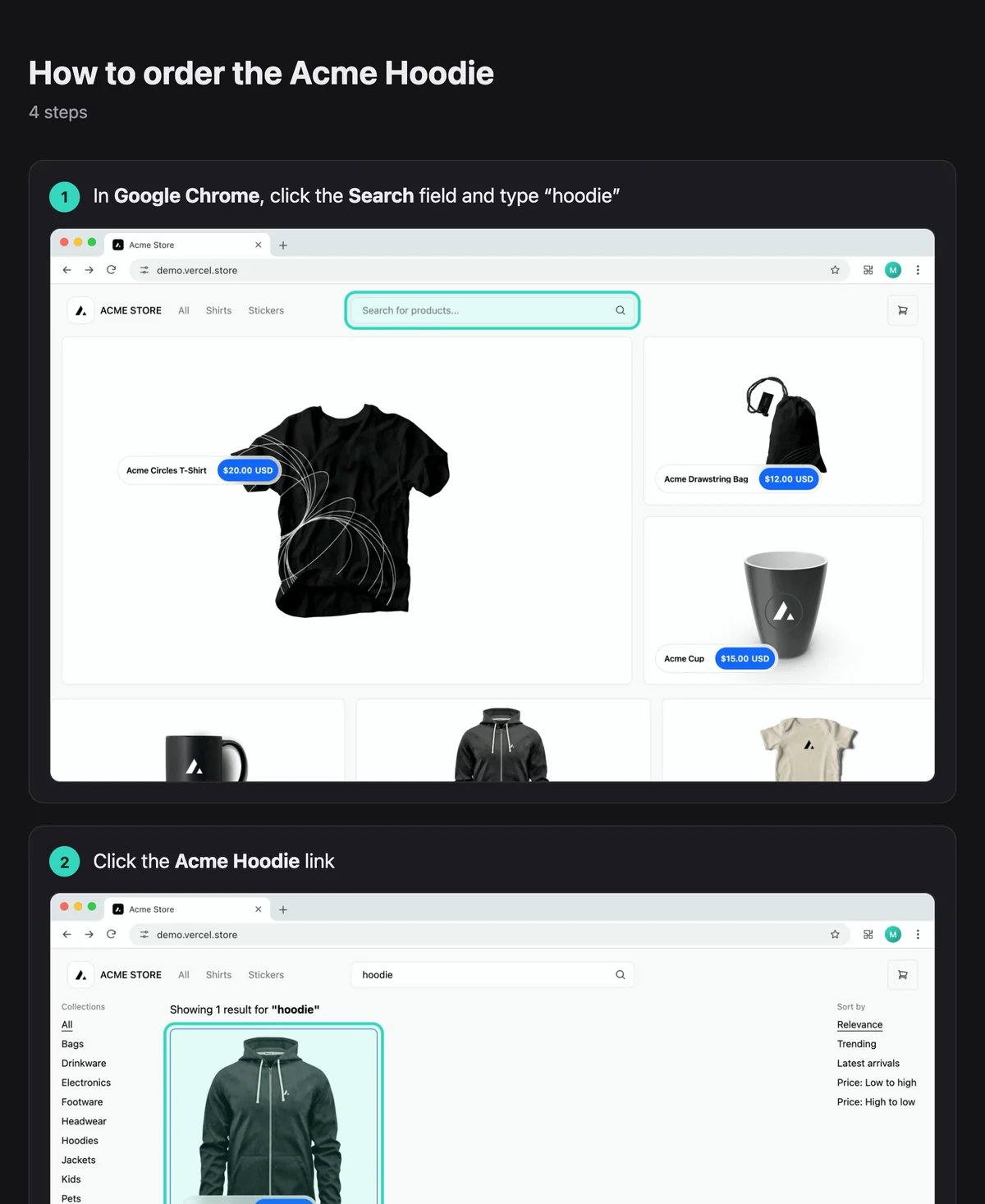
Framecast lists the steps it found in the parts of the video you kept, such as “In Google Chrome, click the Search field and type “hoodie”” or “Click the Acme Hoodie link”. Steps name the buttons and menus you clicked when Framecast had Accessibility permission while you recorded. Otherwise they say “Click here”.
Edit the steps
- Change the Title at the top. It starts as “How to:” followed by the video’s name.
- Click a step to reword it, then press ↩.
- Click a step’s time to show that moment in the editor.
- Click ⊖ to remove a step.
Export it
- Choose a Format: Web page (HTML), Markdown + images or PDF.
- Click Export… and choose where to save it.
- When it’s done, click Open or Show in Finder.
Each step gets a screenshot from the moment before the click, cropped to the window, with the control you clicked outlined. Your blur and pixelate masks show in the screenshots too.
Tip: Quote what I typed puts your typing into the steps (Type “hoodie”). Turn it off to write “Type your text” instead, for example when you typed a customer’s details. Switching it writes the steps again, so set it before you edit them.