GuideRecording
Import a video
Bring in a video you already have, like an older screen recording, and give it a background, zooms, captions and more.
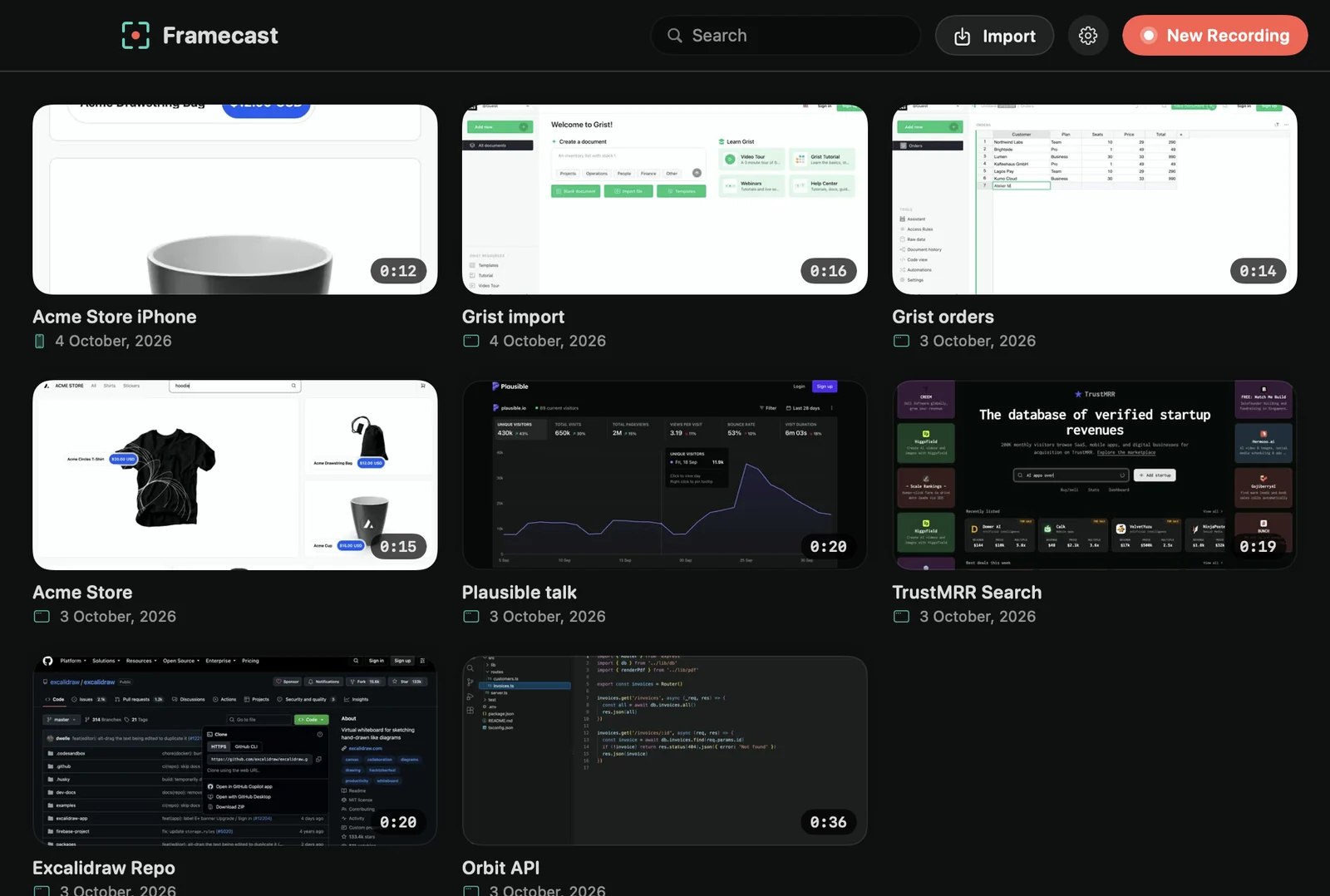
Import a video
- Choose File › Import Video… (⌘I), or click Import at the top of the library.
- Pick a video, such as an MP4 or MOV file, and click Open.
- Framecast adds it to your library and opens it in the editor.
You can also choose Import Video… from Framecast’s icon in the menu bar, or click Import a video when your library is empty. Framecast copies the video without changing its quality, and the file you picked stays where it is.
What you can do with it
An imported video works like a recording in the editor. Put it on a background, change the frame and aspect ratio, trim and speed up clips, and add zooms, masks and annotations. Its sound is treated as your microphone, so captions, the transcript and voice enhancement work too.
What’s different
Framecast didn’t see this video being made, so it doesn’t know where you clicked or what you typed.
- There are no automatic zooms. Press Z to add a zoom at the playhead. See Add and edit zooms.
- The pointer is part of the picture, so it can’t be restyled, smoothed or hidden. Click effects and on-screen keyboard shortcuts aren’t available either.
Tip: for a new screen recording, record it in Framecast instead. You get automatic zooms, a smooth cursor and click effects. See Your first video.