GuideCamera & device
Smart camera
Framecast can keep your face centered, hide the camera while you’re quiet and move it out of your pointer’s way.
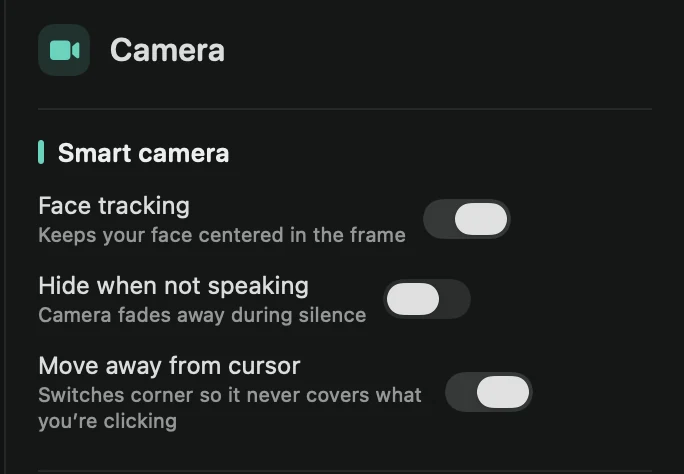
Where to find it
When you record with a camera, the editor has a Camera tab. Open it in the inspector on the right and scroll to Smart camera. Each switch works on your Mac, after recording, and you can change it any time.
Face tracking
Face tracking keeps your face centered in the frame as you move. It’s on at first. Framecast follows your face when you open a camera recording; the toolbar shows “Tracking face…” while it works.
To blur the room behind you, put a picture behind you or show only you, use Behind you just above. See Blur or change your background.
Stay out of the way
- Hide when not speaking fades the camera away while you’re quiet and brings it back a moment before you talk again. Silence delay sets how long you have to be quiet before it fades, from 0.5 to 6 seconds. The camera always shows at the very start, so viewers see who’s talking.
- Move away from cursor moves the camera to the other side when your pointer comes near, so it never covers what you’re clicking. It’s on at first.
Tip: Hide when not speaking suits videos where you talk in bursts: the screen gets the whole frame during the quiet parts.